All guides
AI titles, descriptions and tags
As soon as a design is processed, the AI looks at the art and writes everything a listing needs. You can keep it, type your own name, or ask for a new one.
What you need
- A Gemini key (free) or a Claude key, added in Settings → Connections → AI names
Step by step
Connect the AI once
Go to Settings → Connections, click Edit on AI names, paste a Gemini key and click Check and save. Or choose Use a Claude key instead.

AI names shows Connected with the model in use. What the AI writes
- A short name of 1 to 2 words that's never reused in your library or store
- A one or two sentence description
- 13 tags, short enough for Etsy
- A search title and meta description for SEO
- A collection, when Collections is on
It also flags trademarks it spots in the art.
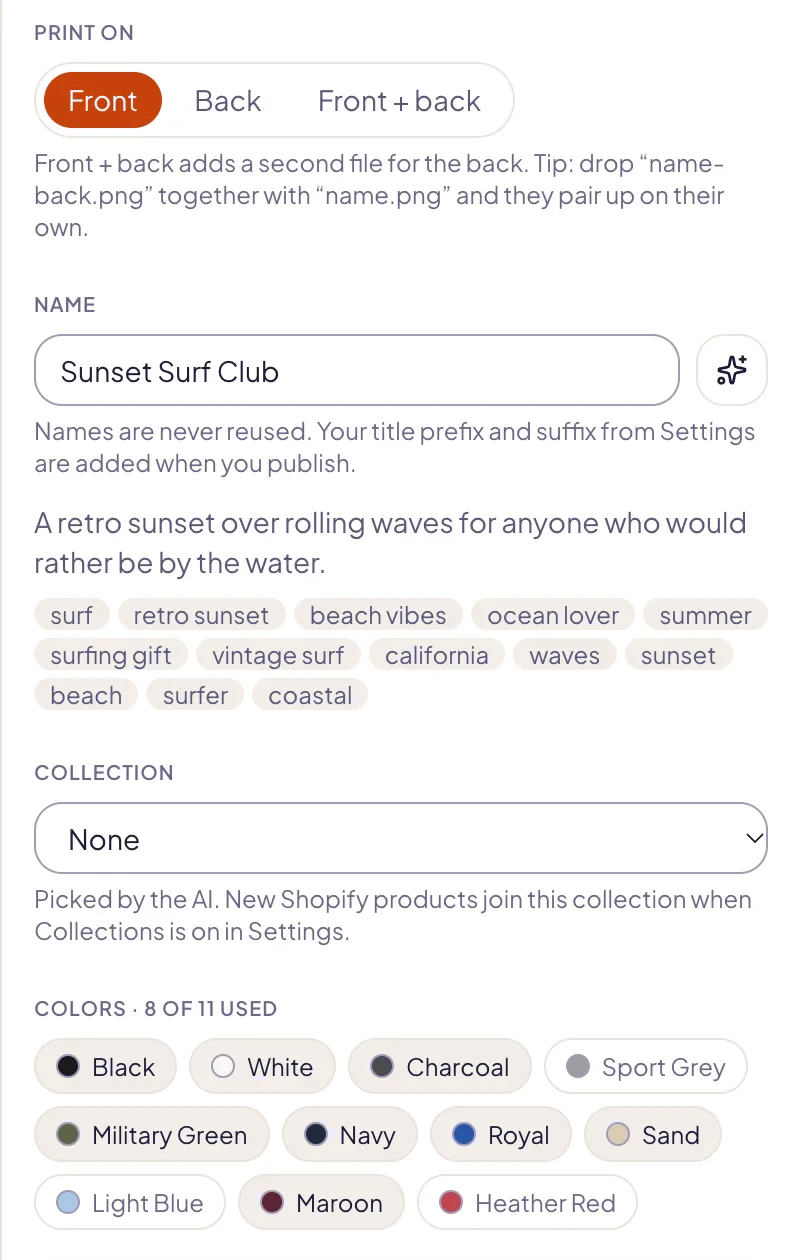
In a design's panel: the name, the description and the 13 tags. Change the name
Open the design, click into the Name field and type. It saves when you press Enter or click away (Esc cancels). Click the sparkle button next to it, Ask AI for a new name, to get a fresh name, description and tags.
Good to know
Good to knowA design can't be published while it still has its file name. Cards say Getting a name… while the AI works.
TipAdd your own words around the AI's text in Settings → Store → Description & SEO (templates with {name}, {brand} and more), and a Title prefix before every product name.
Next
- Review and edit a design Rename, pick colors, set the main image and clear trademark warnings.
- Collections Let the AI put each new product into the right Shopify collection.
- Publish to Shopify and Etsy One click per design or all ready designs at once, at your pace.
Ready to try it?
Free for up to 20 new products a month. No card needed.