All guides
Review and edit a design
Click any design to open its panel. Everything Podjolt decided automatically can be changed here, and every change can be undone.
What you need
- A processed design in your library
Step by step
Find designs that need you
Use the status menu next to the search box (Ready, Processing, Needs a look, Failed) and the Not published / Published / All switch. Search by name, file or #number.
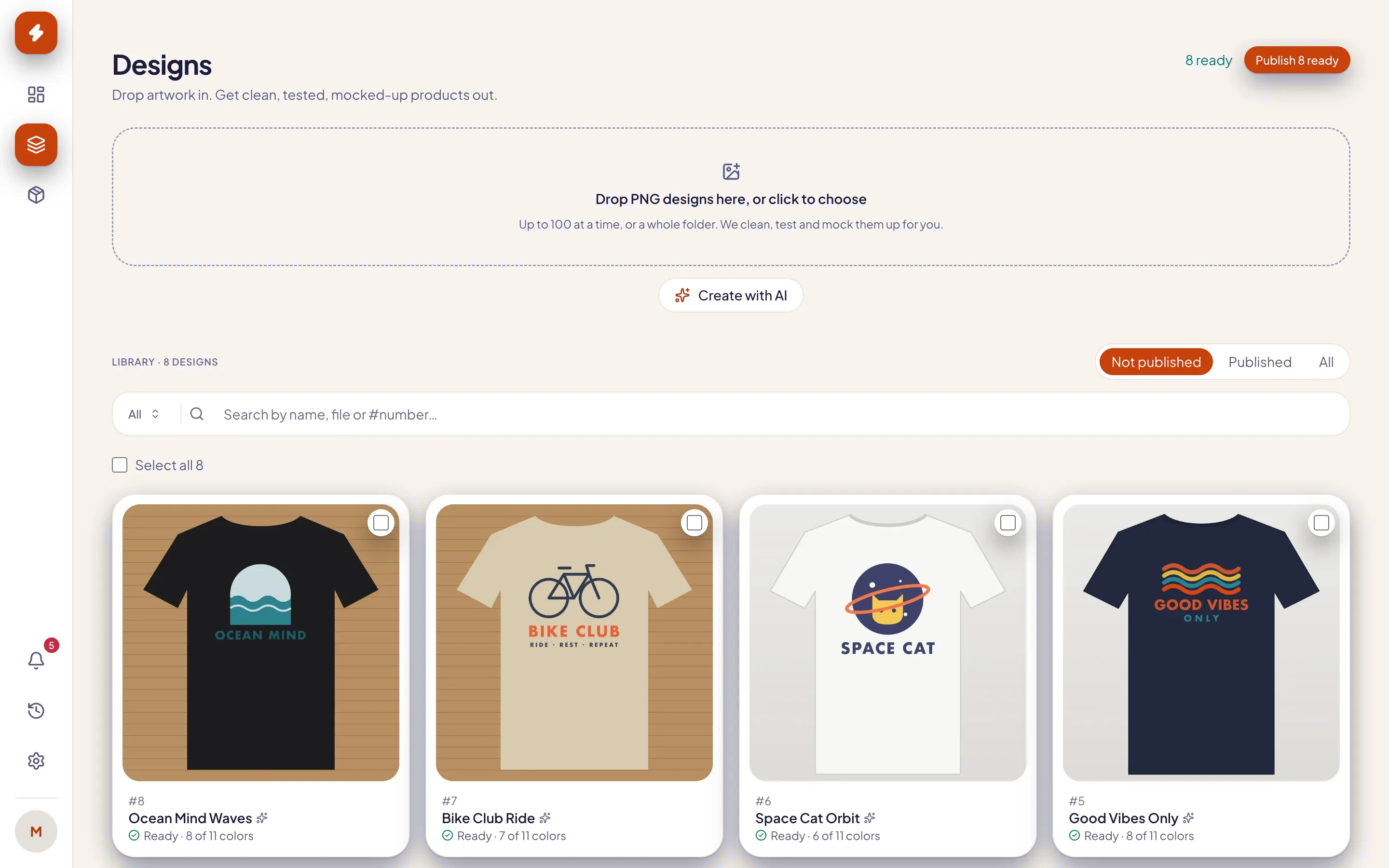
The library with its status menu, search and Not published / Published / All switch. Choose colors and the main image
Hover a mockup and use the eye button: Don't use …, Use … anyway or Back to automatic. Colors you set get a lock. Click the star to Make … the main image.
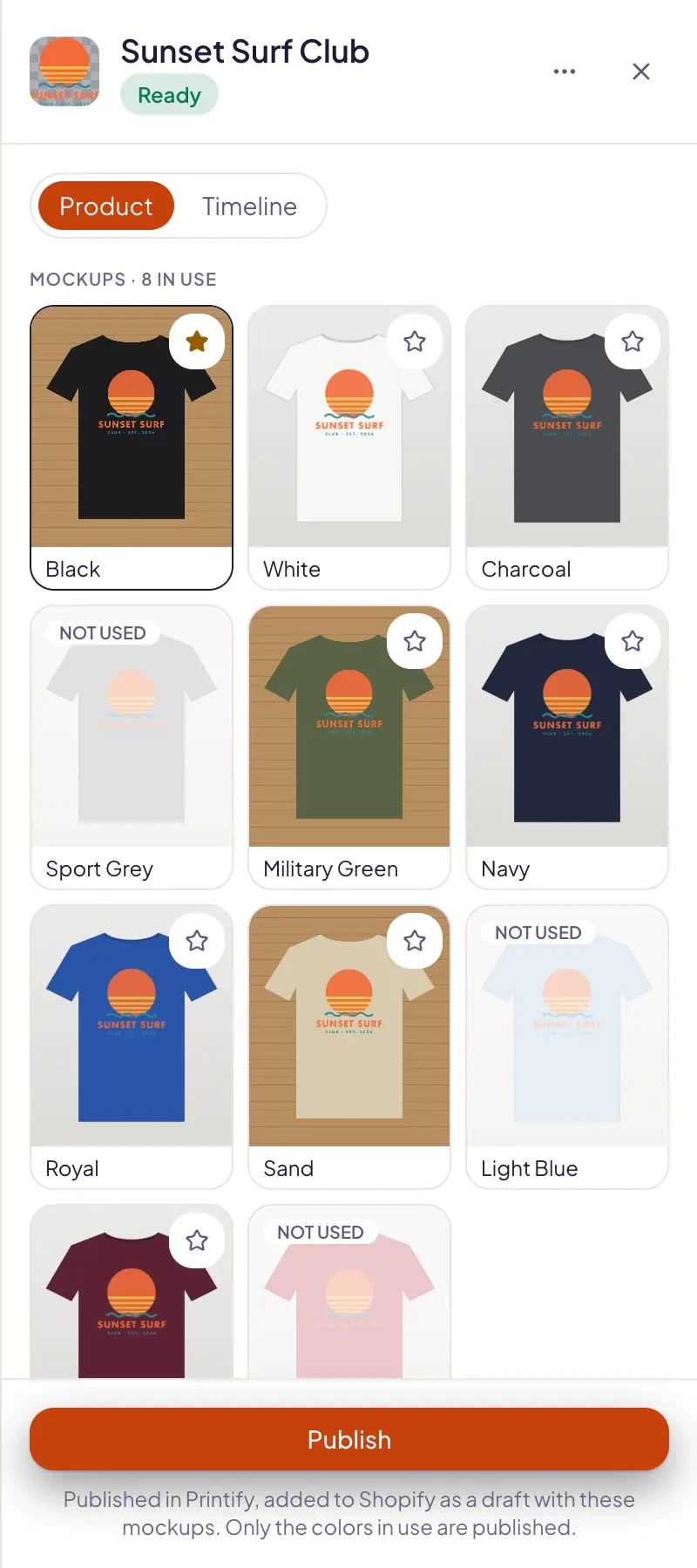
Faded mockups say "Not used". The star marks the main image. Rename, print side and collection
Lower in the panel: Print on (Front, Back, Front + back), the Name, and the Collection menu.
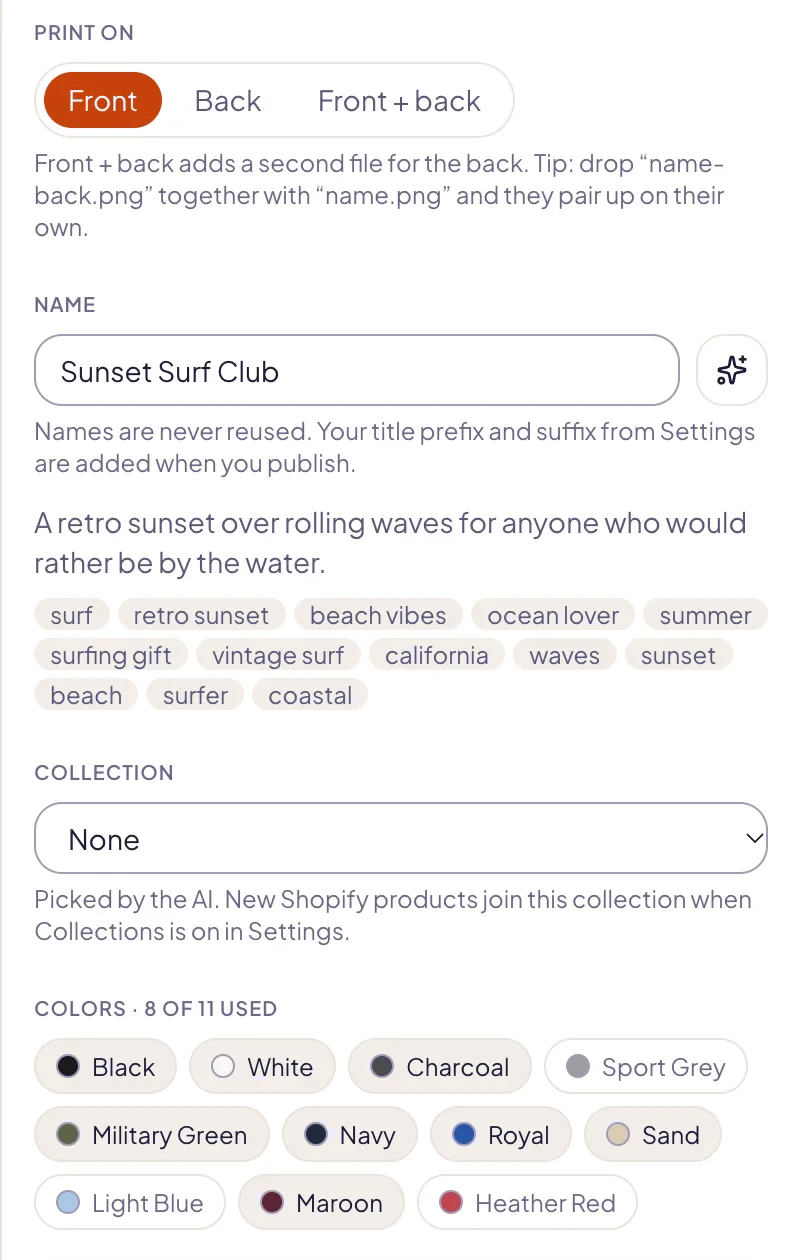
Print on, Name, Collection and Colors. Handle a trademark warning
If the panel shows Possible trademark: …, the name, tags or art may use someone else's brand, team, character or slogan. That can get a store taken down. Change or delete the design, or click It's fine, clear the warning if it's yours or allowed.
Good to know
TipThe ⋯ menu at the top of the panel has Process again and Delete design. Failed designs show a Try again button.
Good to knowThe description and tags are shown as written by the AI. To change them, ask for a new name with the sparkle button.
Next
- The shirt color test Only the colors your art can be seen on get published.
- Mockups for every color A picture of the design on each shirt color, front and back.
- Publish to Shopify and Etsy One click per design or all ready designs at once, at your pace.
Ready to try it?
Free for up to 20 new products a month. No card needed.