All guides
Upload designs in bulk
On the Designs page you drop your artwork in and Podjolt does the rest: it cleans each file, tests shirt colors, makes the mockups and asks the AI for a name. You don't have to wait or click anything per design.
What you need
- PNG files (transparent background is best)
- Your product types set up in Settings
Step by step
Drop your files
Drag PNGs or a whole folder onto Drop PNG designs here, or click to choose, or click it to pick files. Up to 100 at a time. You'll see Added … designs. Processing now.
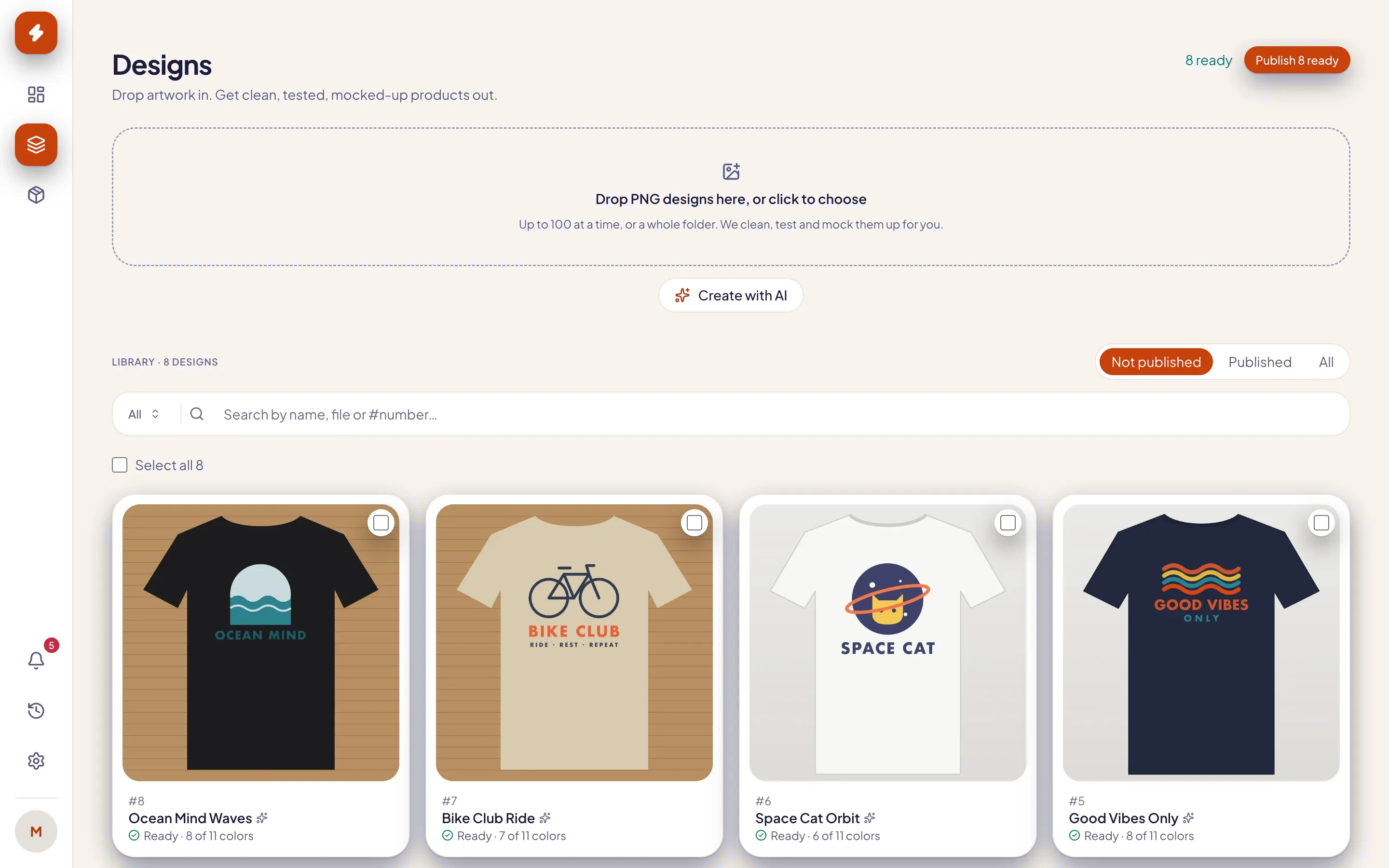
The Designs page: the drop zone on top, your library below. Let it work
Each card shows its progress: Waiting, Working on it…, then Ready with how many colors it uses. The header shows what's left; click Pause to hold the queue.
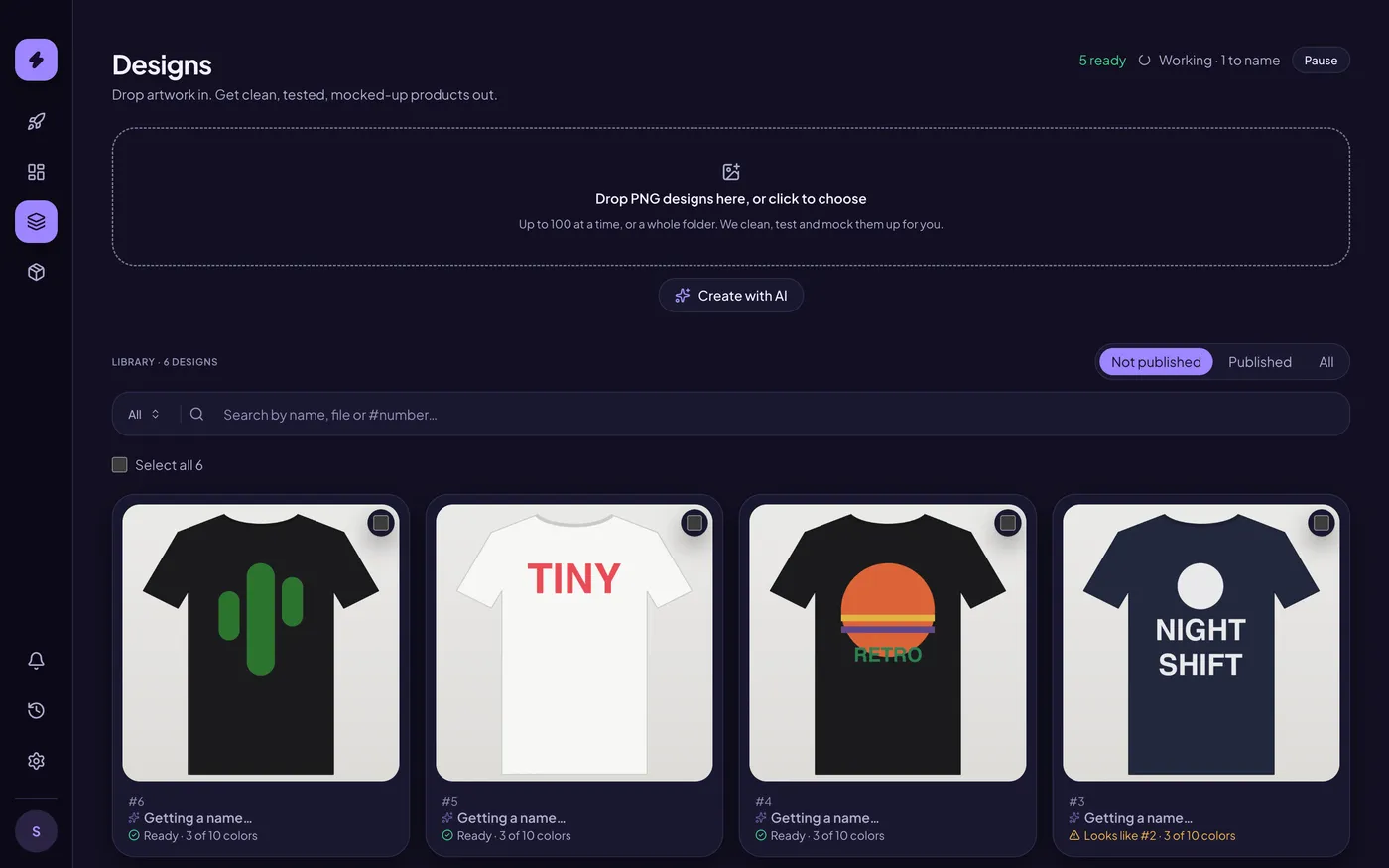
While designs are processed, the header shows "Working" and new cards say "Getting a name…". See what happened to a design
Click a design and open the Timeline tab. It lists every step: the size, whether a flat background was removed, the colors tested and kept, the mockups made, and the AI name.
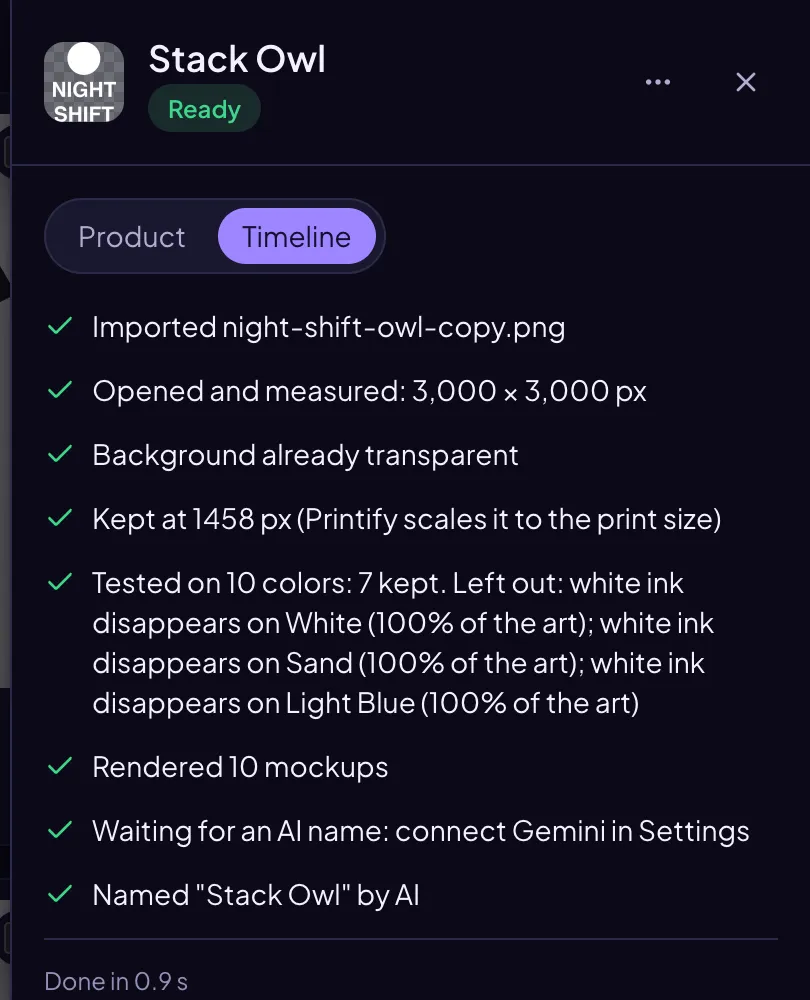
The Timeline tab of one design.
Good to know
TipPrinting on both sides? Drop name-back.png together with name.png and they pair up as one design with a back print.
Good to knowOnly PNG files, up to 200 MB each. A flat single-color background is removed automatically, and the art is trimmed to its edges. Designs that look very similar to one you have are marked Needs a look.
TipNo art yet? The Create tab draws new designs from a short description. See Create designs with AI.
Next
- AI titles, descriptions and tags Every design gets a name, a description, 13 tags and SEO text.
- The shirt color test Only the colors your art can be seen on get published.
- Review and edit a design Rename, pick colors, set the main image and clear trademark warnings.
Ready to try it?
Free for up to 20 new products a month. No card needed.