All guides
Choose products, colors and prices
You set your products up once in Settings, on the Store tab, under Products you sell. Every design you drop in then uses these choices, and publishing never asks again.
What you need
- Printify connected
- Your prices per size in mind
Step by step
Add a product type
Each product type (T-shirt, Hoodie, Sweatshirt, Long sleeve, Tank top) is a pill. Click + Add product type, pick a shape, set the Name in product titles (for example "Hoodie" gives "Design Name Hoodie") and click Add.
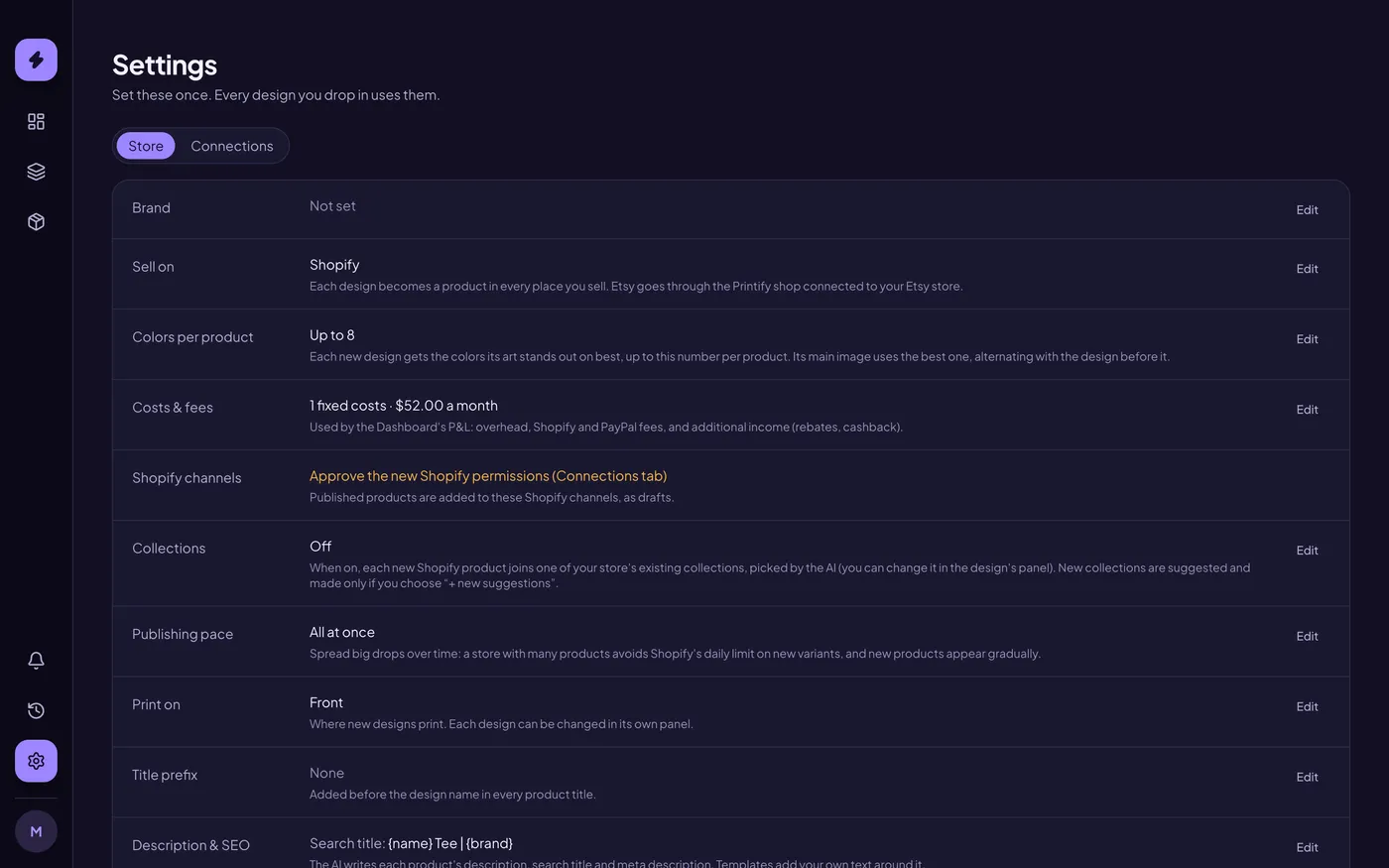
Settings → Store. Store-wide options at the top; "Products you sell" is further down. Choose the garment and print provider
Next to Garment, click Edit. Search Printify's catalog by brand or model (for example "Bella Canvas 3001"), click a garment, then pick a print provider. Providers differ in price, colors in stock and shipping time.
Pick colors
Next to Colors, click Edit. Add colors from From the catalog (Select all new, then Add … colors) or by hand with a color picker and a name. Add as many as you like: every design is tested on all of them and gets the ones its art reads on.
Set prices per size
Next to Prices, click Edit. Set one Price per Size, an optional Compare-at price, and untick Sell for sizes you don't want. With Etsy on there's a Shopify and an Etsy column.
Set print width and where it prints
Print width is how wide Printify prints the art, from 4 to 16 inches (9 in by default; the widest it can go depends on the shirt). On the store-wide Print on row, choose Front, Back or Front + back. Each design can change this in its own panel.
Turn the type on
Make sure Make … products when publishing is ticked. Each design you publish becomes one product per type that's on.
Good to know
TipColors per product (store-wide, up to 8 by default) caps how many colors a single product gets. The best-reading ones are kept.
Good to knowWant profit numbers? Podjolt shows each product's profit on the Products page: your cheapest size's price minus the Printify cost.
Next
- Upload designs in bulk Drop up to 100 PNGs or a whole folder at once.
- The shirt color test Only the colors your art can be seen on get published.
- Mockups for every color A picture of the design on each shirt color, front and back.
Ready to try it?
Free for up to 20 new products a month. No card needed.