All guides
Collections
With Collections on, every new Shopify product joins one of your store's collections, picked by the AI from the design. You can change the pick before publishing.
What you need
- Shopify connected
- Some manual collections in your Shopify store (or let Podjolt suggest new ones)
Step by step
Turn it on
In Settings → Store, click Edit on Collections. Each click moves through Off, Your store's collections, and Your collections + new suggestions.
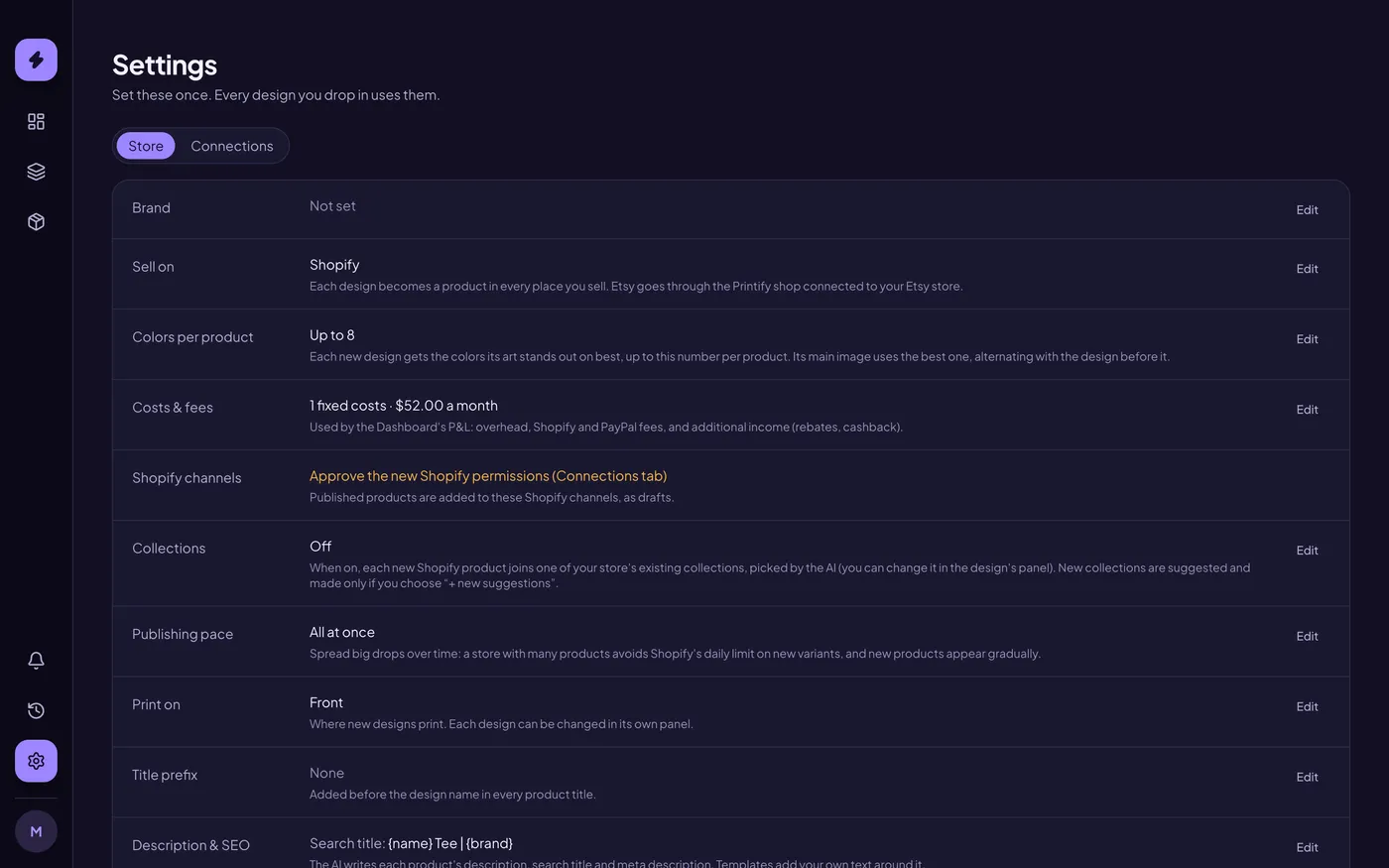
The Collections row in Settings → Store. Check the pick on each design
Open a design. The Collection menu shows what the AI picked. Choose another one or None.
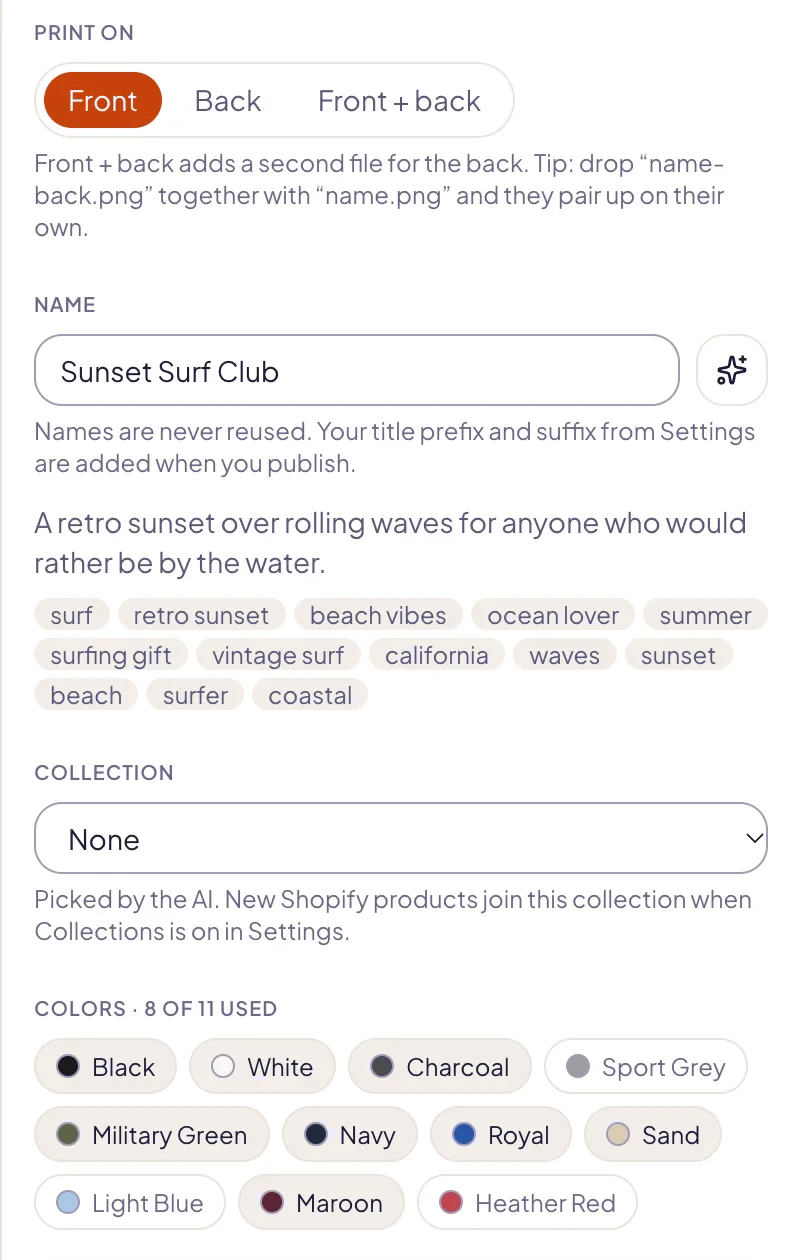
The Collection menu in a design's panel.
Good to know
Good to knowPodjolt uses your manual Shopify collections, not automated (rule-based) ones. New collections are only created when you choose "+ new suggestions".
Next
- Publish to Shopify and Etsy One click per design or all ready designs at once, at your pace.
- AI titles, descriptions and tags Every design gets a name, a description, 13 tags and SEO text.
Ready to try it?
Free for up to 20 new products a month. No card needed.